To cancel your Consumer Reports subscription, start by logging into your account using your email and password. This is the first and easiest step to get things moving.
Next, look for the cancellation link. You can usually find it under “Manage Subscription” on the website or in the renewal emails they send you. It’s pretty straightforward once you know where to look.
Make sure to disable auto-renewal a few days before your renewal date. This helps you avoid any unwanted extra charges that might pop up if you miss the timing.
After you’ve done that, confirm your cancellation by checking for a confirmation email. Also, take a moment to verify your account status just to be safe.
Keep an eye on your billing after cancellation to catch any unexpected charges early on. And if you hit any snags or need help, don’t hesitate to contact Consumer Reports support.
Following these steps will help guarantee a smooth cancellation process without any surprises.
Key Takeaways
- Sign in to your Consumer Reports account using your registered email and password on the official website.
- Navigate to “Manage Subscription” or “Cancel Subscription” under “My CR” or “Account Settings.”
- Disable auto-renewal a few days before the renewal date to prevent further charges.
- Confirm cancellation via the confirmation email or message and save this for your records.
- Monitor your account and billing statements for 7-10 days to ensure no additional charges occur.
That’s pretty much it! Just keep an eye on your statements to be sure everything’s all set.
How to Log Into Your Consumer Reports Account

Wondering how to access your Consumer Reports account? Simply head to the official website and click the “Sign In” button at the top right corner of the homepage. You’ll need your registered email address and password to sign in.
If you’ve forgotten your password, just click the “Forgot Password” link to reset it quickly. For Print membership holders, have your account number handy—it’s required to sign in and view your details.
Once signed in, navigate to “My CR” or “Account Settings” to check or update your subscription and personal info. Remember, for your security, always log out after managing your account, especially if you’re using a shared or public device.
This keeps your information safe while making changes.
Find Your Subscription Cancellation Link

Start by logging into your Consumer Reports account to locate the official cancellation page. Make certain your subscription details are correct before proceeding.
Using the verified cancellation link guarantees a smooth and secure process. It’s the best way to avoid any hassle. Just take it step by step, and you’ll be all set!
Locate Official Cancellation Page
Where can you find the official cancellation page for your Consumer Reports subscription? Start by logging into your account on the Consumer Reports website. Once logged in, navigate to “Manage Subscription” or “Cancel Subscription” under your account settings.
This is where you’ll find the direct cancellation link to end your subscription. Make sure to use the URL provided by Consumer Reports to avoid phishing sites.
If you subscribed through a third-party vendor like an app store, the cancellation link might redirect you to their platform instead.
Also, Consumer Reports often includes a cancellation link in renewal notices and confirmation emails, offering another easy way to access the official cancellation page. Always confirm you’re on the legitimate site before proceeding.
Verify Subscription Account Details
After locating the official cancellation page, the next step is to verify your subscription account details to find the exact cancellation link. Start by logging into your Consumer Reports account using your credentials.
Your dashboard will display subscription details like expiration date and cancellation options. If you subscribed through a third party, check their platform for the cancellation link instead.
For Print members, you can often access subscription management via the mailing label or by signing in with your account number. Always confirm the cancellation link comes from a legitimate Consumer Reports URL to avoid phishing or scams.
Verifying these details helps you cancel smoothly and securely without risking your account information. It’s always better to be safe than sorry!
Confirm Your Cancellation
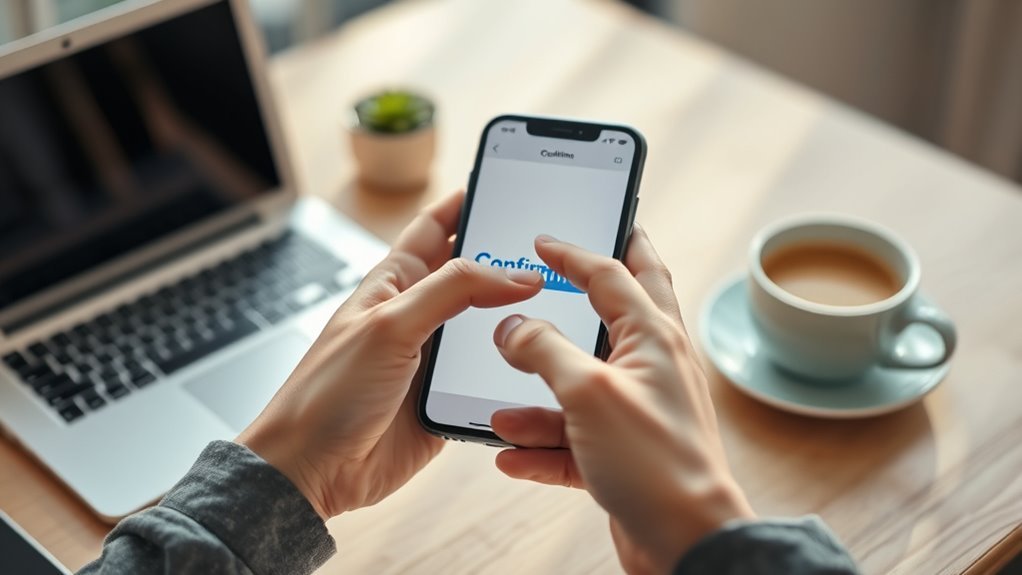
Even once you’ve canceled your Consumer Reports subscription, you’ll want to verify that the cancellation went through properly. First, look for a confirmation email or message to verify your request was processed.
After canceling Consumer Reports, always check for a confirmation email to ensure your request was processed.
Keep this confirmation for your records in case of future billing disputes. Within 7-10 days, check your account or billing statements to ensure no further charges appear.
If you have a print subscription, confirm the last issue has arrived and that no renewal charges show on your mailing label or account. If you don’t receive confirmation or notice ongoing charges, contact customer support immediately.
Taking these steps helps you avoid unwanted payments and guarantees your cancellation is fully recognized.
Stop Auto-Renewal on Your Consumer Reports Subscription
To stop auto-renewal on your Consumer Reports subscription, you’ll need to manage your settings online.
If you have a Digital or All Access subscription, just head over to the “Manage My Membership” page. Print subscribers should choose “Change My Automatic Renewal Status.”
It’s a good idea to do this a few days before your renewal date. That way, you can avoid any unwanted charges.
Disable Auto-Renewal Online
You can stop your Consumer Reports subscription from renewing automatically by signing into your account and visiting the Manage My Membership page. Once there, look for the “Change My Automatic Renewal Status” link if you have a Print membership to disable auto-renewal.
For Digital and All Access memberships, you’ll find the option to turn off auto-renewal within the same section. Be sure to complete this at least a few days before your renewal date to avoid being charged, as auto-renewal is processed automatically.
If you run into any problems or can’t access your account, contact a support agent who can help you disable auto-renewal. This way, you maintain control over your subscription without unexpected renewals.
Manage Print Subscription Settings
When managing your Print Consumer Reports subscription, you can easily stop auto-renewal by signing into your account and selecting “Manage My Membership.” From there, look for the “Change My Automatic Renewal Status” link to update your renewal preferences.
This lets you manage your subscription directly, guaranteeing you control if and when your membership renews. Check your current renewal status either online or on your mailing label. Make sure to make changes before the renewal date to avoid unexpected charges.
If you run into issues accessing your account or updating settings, Consumer Reports’ support agents can help you manage your subscription and stop auto-renewal. Taking these steps ensures your print subscription ends when you want without unnecessary fees.
What to Expect After Canceling Your Subscription
Although canceling your Consumer Reports subscription stops future payments, your access will continue through the current billing period or issue cycle. You’ll still enjoy your membership benefits and publications until the subscription officially expires.
No additional charges will be made after canceling, but refunds typically aren’t provided for the unused portion unless you canceled within a specific timeframe. You might get a confirmation email or notification confirming your cancellation.
Here’s what to expect after canceling:
- Continued access until the end of your current billing or issue cycle
- No further subscription charges after cancellation
- Usually no refunds for the remaining period unless within a cancellation window
- Confirmation notification or email from Consumer Reports
Keep in mind, canceling takes effect immediately for payments but access lasts until expiration.
Check Your Cancellation Status and Account Details
Before assuming your Consumer Reports subscription has ended, make sure to sign into your My CR account and verify the cancellation status. Check your account details to see if your subscription is active or canceled.
Take a look at the expiration and renewal dates found in your account settings or on your Print membership’s mailing label for accurate verification. Use the “Manage My Membership” section to confirm whether automatic renewal is on or off, especially for Digital or All Access subscriptions.
Also, review recent payment confirmations or billing statements to verify if your subscription has been renewed or successfully canceled. If your account doesn’t reflect your cancellation request, or if you notice any unauthorized activity, contact Consumer Reports support for assistance.
This step guarantees you fully manage your subscription and avoid unwanted charges. It’s always better to double-check than to be surprised later!
Contact Consumer Reports for Cancellation Help
If you need assistance canceling your Consumer Reports subscription, you can reach out to their Member Support team via chat, email, phone, or postal mail. Having your contact information and subscription details ready will help speed up the process.
Support agents can verify your account, confirm your subscription status, and process your cancellation quickly.
Here’s what to keep in mind when you contact Consumer Reports for cancellation help:
- Provide your account number or subscription details for verification
- Use the contact information available on their website to choose your preferred method
- Reach out Monday through Saturday during their customer service hours
- Save all communication records, including confirmation numbers or emails, for your reference
Doing these things guarantees your cancellation is handled smoothly and efficiently.
Frequently Asked Questions
How Much Does a One-Year Subscription to Consumer Reports Magazine Cost?
A one-year subscription to Consumer Reports magazine costs you $39. You can save 10% by applying the coupon code MSS10 when purchasing. This price includes the print magazine, with optional digital access available if you want it.
How to Stop Consumer Reports?
You can stop Consumer Reports by logging into your account, then clicking “Cancel Subscription” or turning off auto-renewal in “Manage My Membership.” Contact customer support if you face issues or unauthorized charges within 60 days.
How Do I Check on My Consumer Reports Subscription?
You can check your Consumer Reports subscription by signing into your My CR account or visiting Account Settings on their website. You can also review your magazine’s mailing label, renewal emails, or contact Member Support for details.
Is There a $20 Subscription to Consumer Reports?
No, Consumer Reports doesn’t offer a $20 subscription officially. Their standard annual fee is around $39. If you see a $20 offer, double-check—it might be unauthorized or a scam. Always verify on their official site.
Conclusion
Canceling your Consumer Reports subscription is straightforward and puts you in control. You might worry about losing access to valuable reviews, but remember, you can always resubscribe anytime or access free resources online.
By following these steps, you’ll avoid unwanted charges without hassle. If you run into any issues, Customer Service is ready to help.
Taking charge of your subscription means no surprises on your bill and peace of mind. Staying on top of your Consumer Reports subscription ensures you manage your expenses effectively while still having options to access trusted reviews when you need them. Don’t hesitate to reach out for support if needed—canceling your subscription is simple and hassle-free.