To cancel your Consumer Reports membership online, start by signing in to your account and heading over to Account Settings.
Look for the Manage Membership or Subscription section—this is where you’ll find the option to cancel.
Click the cancel link and carefully follow the on-screen prompts to complete the cancellation process. It’s important to save any confirmation you receive during this step.
Also, check your email for proof that your membership has been canceled.
Keep an eye on your billing statements afterward to avoid any unexpected charges.
If you want to make sure everything goes smoothly or if you run into any issues, you can check out tips and troubleshooting advice next. This way, you’ll have extra help just in case you need it.
Key Takeaways
- Sign in to your Consumer Reports account and navigate to “Account Settings” to access the “Manage Membership” or “Subscription” section.
- Locate and click the cancellation link within the membership or subscription area to start the cancellation process.
- Follow all on-screen prompts carefully to confirm and verify your cancellation request.
- Make sure to save the cancellation confirmation by screenshot or download before the renewal date to avoid any future charges.
- Lastly, check your email for the cancellation confirmation and keep an eye on your billing statements for any unexpected charges.
Sign In to Cancel Your Consumer Reports Membership

Before you can cancel your Consumer Reports membership online, you’ll need to sign in to your account by clicking the sign-in option at the top right corner of the website. Once you sign in, navigate to the “Account Settings” section to see your active subscription details.
In this area, you’ll find the option to cancel membership, which starts the process on the online platform. Follow the prompts carefully to confirm your cancellation. This straightforward process applies whether you have an annual or monthly membership.
Locate and Click the Cancel Membership Link
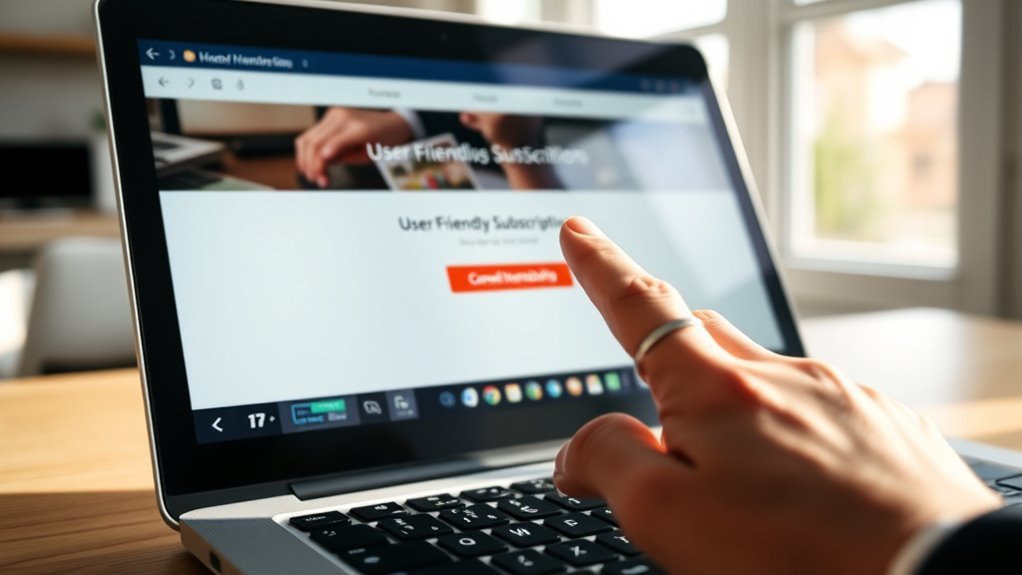
Where can you find the cancel membership link once you’re signed in? After logging into your Consumer Reports account, head to the top right corner of the homepage. Click on your account settings, then navigate to the “Manage Membership” or “Subscription” section.
Here, you’ll see the cancel membership link clearly labeled. Make sure you’re signed in with the correct account, as this link appears only for active memberships. Click the cancel link to start the process, then follow the prompts for confirmation.
| Step | Location |
|---|---|
| Sign In | Top right corner |
| Account Settings | Dropdown menu |
| Manage Membership | Within settings |
| Subscription Details | Under Manage Membership |
| Cancel Membership | Clearly labeled link here |
Confirm Your Cancellation Step-by-Step

Once you’ve clicked the cancel membership link, you’ll need to carefully follow each prompt to confirm your cancellation. Make sure you’re signed in to the correct Consumer Reports account before proceeding.
After clicking cancel, follow each prompt carefully and ensure you’re signed into the correct Consumer Reports account.
The online cancellation process will guide you through several verification steps to verify you want to cancel. Pay close attention to each screen in your account settings until you complete the cancellation.
After finishing, you should receive a clear confirmation on-screen, which serves as your cancellation verification. It’s important to save this confirmation receipt—either by screenshot or download—as proof that you’ve successfully canceled.
Completing this process before your annual renewal date helps avoid unwanted charges. Following these steps carefully ensures your cancellation is processed correctly and final.
Verify Your Cancellation and Save Confirmation
How can you be sure your Consumer Reports subscription cancellation is complete? After canceling online, look for a confirmation email or message that serves as cancellation verification. It’s crucial to save proof by screenshotting or storing this confirmation message.
Keep a detailed cancellation record, including the confirmation date and any reference number provided. To ensure no further charges appear, regularly monitor your billing statements and account activity.
Here’s what to do next:
- Save the confirmation email or message immediately.
- Record the cancellation date and reference number.
- Check your billing statements for unexpected charges.
If you don’t receive a confirmation, contact Consumer Reports customer service promptly for verification. This way, you can confidently track your cancellation and avoid unwanted fees.
Troubleshoot Common Cancellation Issues and Get Help
Keeping track of your cancellation confirmation is a good start, but sometimes issues can still pop up when ending your Consumer Reports subscription online. If you run into cancellation problems, first make sure you’re signed into your account and following the “Cancel Membership” prompts under account settings.
Keep your cancellation confirmation handy and ensure you follow the “Cancel Membership” steps in your account settings.
When delays or errors keep happening, try clearing your browser cache or switching to a different device. It’s also a good idea to review your cancellation confirmation emails and billing statements to catch any auto-renewal notices.
If your cancellation didn’t go through, give customer support a call at 1-800-333-0663. They can verify your status and help clear up any discrepancies.
For ongoing issues, you might want to try third-party tools like DoNotPay. They can automate troubleshooting and help you terminate your subscription more easily.
Acting quickly is key to avoid unexpected charges and make sure your subscription is fully closed.
Frequently Asked Questions
Can I Cancel Consumer Reports Online?
Yes, you can cancel Consumer Reports online by signing into your account, going to “Account Settings,” and selecting “Cancel Membership.” Most cancellations process immediately, but you should confirm via the email or notification they send you.
How Do I Manage My Consumer Reports Subscription?
You can manage your Consumer Reports subscription by signing into your account, then visiting “Account Settings.” From there, you can update billing info, change plans, view renewal details, or cancel your membership easily online.
How Much Is a 1 Year Subscription to Consumer Reports?
Wondering how much a one-year Consumer Reports subscription costs? It’s $39 annually, whether you choose print or digital. Don’t forget, you can save 10% with the coupon code MSS10 at checkout to get a better deal.
How Do I Cancel My CR Membership?
You cancel your CR membership by signing into your account, heading to “Your Account Settings,” and selecting “Cancel Membership.” Follow the prompts to complete cancellation before your renewal date to avoid automatic charges.
Conclusion
Now that you’ve navigated the digital maze like a seasoned explorer with a trusty compass, canceling your Consumer Reports membership is a breeze. Just sign in, find that cancel link, confirm your choice, and save your confirmation.
If any hiccups pop up, don’t hesitate to troubleshoot or ask for help. You’ve got this—no need for smoke signals when online steps make it so simple and quick!
Canceling Consumer Reports online is straightforward and user-friendly. Following these easy steps ensures a smooth process without any hassle. Remember, saving your confirmation is key in case you need proof of cancellation later. So, take a deep breath, follow the steps, and enjoy the ease of managing your Consumer Reports membership anytime, anywhere.