To cancel your Consumer Reports digital subscription, start by logging into your account. Then, head over to the Subscription or Billing section where you can manage your membership.
Look for the cancel subscription option under “Manage My Membership” and follow the prompts step-by-step. It’s pretty straightforward and won’t take long.
Make sure to review your renewal information carefully before you confirm the cancellation. Also, check your final billing to ensure everything looks right.
Don’t forget to turn off auto-renewal to avoid any future charges sneaking up on you. After that, verify your account status to confirm it shows cancellation and that no further payments are due.
Keep reading if you want some handy tips for hassle-free cancellations and how to avoid unwanted renewals in the future. This way, you can manage your Consumer Reports digital subscription easily and stress-free.
Key Takeaways
- Log into your Consumer Reports account using your registered email and password to access subscription settings.
- Navigate to “Manage My Membership” or account settings to locate the “Cancel Subscription” option.
- Verify your identity if prompted and follow the on-screen instructions to complete the cancellation process.
- Check your subscription status and billing details to confirm auto-renewal is turned off and cancellation is effective.
- Look for a cancellation confirmation email and monitor billing statements to ensure no future charges occur.
Log Into Your Consumer Reports Account

Before you can cancel your Consumer Reports digital subscription, you’ll need to log into your account. To do this, visit the official Consumer Reports website and click the “Sign In” button at the top right corner.
Enter the registered email address and password linked to your subscription to log in. If you’ve forgotten your login credentials, don’t worry—you can use the “Forgot Password” link to reset your password via email.
Make sure you’re logging into the correct account associated with your digital subscription before moving forward. Once you’ve successfully logged in, you’ll have access to manage your subscription details, including options related to your subscription status and billing.
Logging into your account is the essential first step before making any changes. It’s pretty straightforward, so you’ll be all set in no time!
Go to Consumer Reports Subscription or Billing Section

When you’re logged in, head straight to the Subscription or Billing section on the Consumer Reports website to manage your digital subscription. This area lets you view your current plan details, billing dates, and payment methods.
It’s essential to access this section early so you can cancel before the next renewal date and avoid extra charges. Look carefully for subscription management options; sometimes, cancellation links are also found in your subscription confirmation email.
| Section | Purpose | Tips |
|---|---|---|
| Subscription Info | See plan type & status | Verify your current subscription |
| Billing Details | Review payment & renewal dates | Check for upcoming charges |
| Manage Subscription | Access cancellation options | Cancel prior to renewal |
| Contact Support | Get help if needed | Use if you can’t find cancel |
Navigating here makes canceling your subscription a lot easier. Just follow the steps, and you’ll be all set!
Find and Select the Cancel Subscription Option
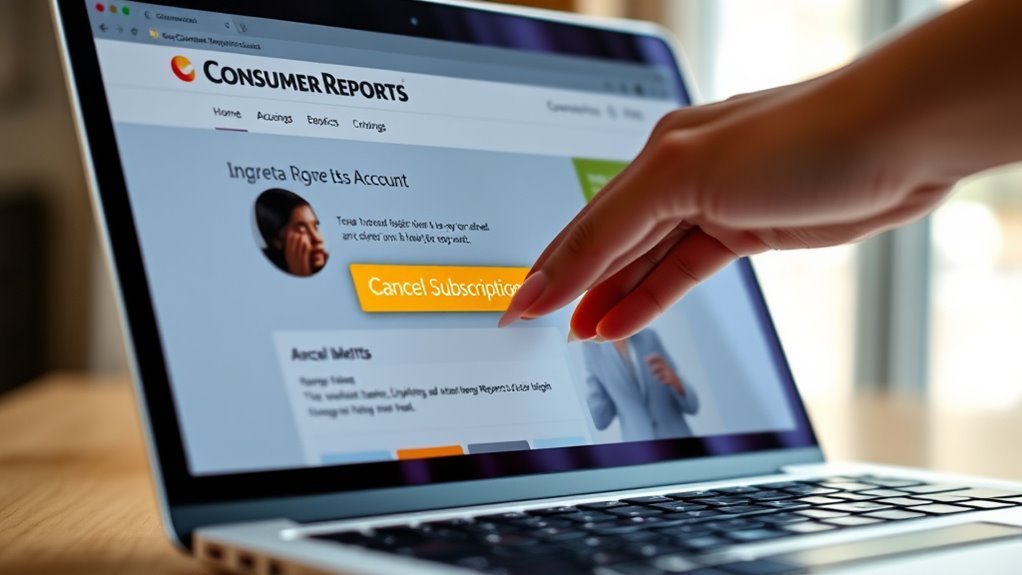
Once you’re signed in, head to your Account Settings or the Manage Membership section.
There, you’ll find options related to your subscription details. Look carefully for the Cancel Subscription link to start the process.
Just follow the prompts from there, and you’ll be all set. It’s pretty straightforward!
Locate Account Settings
Although steering through account settings might seem tricky, you can easily find the cancel subscription option by signing in to your Consumer Reports account on their official website. Once logged in, click on “My CR” or your profile icon to open your account dashboard.
From there, navigate to the account settings section, where you’ll find options to manage your membership and subscription details. Look specifically for subscription management or billing areas within account settings, as the cancel subscription option is usually located there.
If you have multiple subscriptions, be sure to select the correct one to avoid any confusion. This straightforward approach guarantees you’re in the right place to move forward with canceling your Consumer Reports digital subscription efficiently.
Access Manage Membership
To access the option to cancel your Consumer Reports digital subscription, start by logging into your account on their website. Once logged in, head over to the “Manage My Membership” section.
Here, you’ll find the link to cancel subscription, usually under account settings or membership management. You might need to verify your identity by entering account details before proceeding.
Follow the on-screen prompts carefully to complete and confirm your cancellation.
| Step | Action |
|---|---|
| 1 | Log in to your account |
| 2 | Go to “Manage My Membership” |
| 3 | Select “Cancel Subscription” and follow prompts |
This process ensures you can easily manage my membership and cancel subscription when needed.
Review Your Subscription and Renewal Info
You can easily review your Consumer Reports digital subscription and renewal details by signing into your account on the My CR page. Once logged in, head to Manage My Membership to check your current membership status, renewal date, and whether automatic renewal is enabled.
Your subscription renewal status and expiration date will be clearly displayed in your account settings. For All Access or Digital memberships, you’ll also receive renewal information via email receipts or renewal confirmation messages.
Regularly verifying your membership details helps you stay informed about upcoming renewal and expiration dates. This way, you can manage your subscription effectively.
It’s a good idea to do this before you proceed with cancellation. That way, you can avoid unexpected charges or service interruptions.
Confirm Your Cancellation and Review Final Billing
After you submit your cancellation request, check for a confirmation email to verify it went through. Make sure you don’t miss it!
Review your final billing statement carefully to catch any unexpected charges. It’s always good to double-check.
Also, understand the refund policy in case you’re eligible for a partial refund. That way, you know what to expect.
Verify Cancellation Confirmation
How can you be sure your Consumer Reports digital subscription cancellation went through? First, check your email for a cancellation confirmation from Consumer Reports. This message serves as your official proof that the process completed successfully.
Next, log into your account and review your subscription status. It should clearly show as canceled or inactive.
If you don’t see a confirmation email or your account still shows an active subscription, contact Member Support immediately to request confirmation of your cancellation.
Also, keep an eye on your credit card or bank statements to verify no further charges appear. Verifying these details promptly helps you avoid unwanted billing and confirms that your cancellation request was processed correctly.
Check Final Billing Details
Although canceling your Consumer Reports digital subscription is an essential step, verifying that the cancellation took effect by checking your final billing details guarantees no unexpected charges occur.
After you cancel your subscription, review your last billing date and the amount charged to confirm the cancellation was processed correctly. Check your account settings or subscription status for confirmation.
Also, watch for any confirmation emails or notifications from Consumer Reports. Finally, verify that no automatic renewal fees appear on your credit card or PayPal.
| Step | What to Check | Purpose |
|---|---|---|
| Review Final Billing | Last date and amount charged | Confirm cancellation took effect |
| Check Account Status | Subscription status updates | Ensure cancellation is reflected |
| Monitor Payments | Credit card/PayPal statements | Prevent unexpected charges |
Understand Refund Eligibility
When can you expect a refund after canceling your Consumer Reports digital subscription? Refund eligibility depends on when you cancel relative to your renewal date. Here’s what you need to know:
Cancel within 7 days of renewal to qualify for a refund, minus a $10 processing fee. After 7 days, no refund is issued, but you keep access for a full year from renewal.
Make sure you confirm your cancellation by checking for a confirmation email. You can also see if your subscription is inactive in your account.
Finally, review your final billing by verifying your renewal confirmation or checking your credit card or PayPal statement for charges.
Understanding these points helps you handle your cancellation and refund expectations clearly.
Get Help From Member Support If You Run Into Issues
If you run into trouble canceling your Consumer Reports digital subscription online, don’t hesitate to reach out to Member Support via chat, email, or phone. When you contact Member Support, provide your membership ID or the email associated with your account to expedite the verification process.
Support agents can help you cancel your subscription if technical issues prevent you from doing so online. They’ll also clarify any questions about the cancellation steps and investigate unauthorized charges or renewal problems.
If your issue persists, Member Support is equipped to escalate your case or offer alternative methods to cancel. Don’t struggle alone—getting help guarantees your cancellation request is handled promptly and correctly.
Check Your Account for Remaining Access and Charges
Before you finalize your cancellation, log into your Consumer Reports account to check your subscription status and any remaining access. Here’s what to do:
- Locate your account number and verify your subscription details on the dashboard.
- Check the expiration date and look for any upcoming renewal charges.
- Review recent billing statements or email confirmations for processed charges or renewal notices.
- Confirm your membership hasn’t auto-renewed by inspecting the renewal settings.
If you spot any discrepancies in your access period or unexpected charges, contact Customer Support immediately. This way, you’re fully informed about your subscription timeline and billed amounts before completing your cancellation.
Verify Your Consumer Reports Subscription Has Ended
After reviewing your account details and billing statements, the next step is to verify that your Consumer Reports digital subscription has officially ended. Log into your account and check the status in the “My CR” section to see if your access is no longer active and the renewal date has passed.
You can also find the expiration date in your account details or the confirmation email you received at renewal. Reviewing recent billing or renewal confirmation emails helps confirm whether your subscription was canceled or didn’t renew.
Additionally, check your credit card or bank statements for any recent charges from Consumer Reports to verify automatic payments have stopped. Taking these steps provides clear confirmation that your subscription has ended successfully.
Turn Off Auto-Renewal to Stop Future Charges
While your current Consumer Reports subscription remains active until the end of your paid period, you can prevent future charges by turning off auto-renewal. Here’s how to do it quickly:
Keep your Consumer Reports subscription active but avoid future charges by simply turning off auto-renewal.
- Sign into your account and go to Manage My Membership.
- For Digital/All Access subscriptions, click the “Change My Automatic Renewal Status” link.
- Disable auto-renewal to stop future payments; your subscription will stay active until the period ends.
- Alternatively, contact Member Support via chat, email, or phone to request auto-renewal cancellation.
Afterward, double-check your account settings or look for a renewal confirmation email to make sure auto-renewal is off.
This simple step helps you avoid unexpected charges without losing access prematurely.
Tips to Avoid Unwanted Renewals in the Future
To prevent unwanted renewals, you should regularly check your subscription renewal date and disable auto-renewal well in advance. Use the Manage My Membership tool or the “Change My Automatic Renewal Status” option to turn off auto-renewal for your digital subscription.
Keep an eye on email confirmations and account notifications that confirm your renewal status, so you catch any accidental renewals early. It’s also wise to review your account settings or billing statements regularly to make sure auto-renewal has been successfully canceled.
Finally, always cancel your subscription a few days before the renewal date to avoid being charged for the next billing cycle. By staying proactive and using these tools, you can easily avoid unwanted renewals in the future.
Frequently Asked Questions
Does Consumer Report Have a Digital Only Subscription?
Yes, Consumer Reports offers a digital-only subscription that lets you access all their ratings, reviews, and reports online without a print magazine. You can enjoy flexible, full digital content through their website or mobile app.
How Do I Contact Consumer Reports Customer Service?
You can contact Consumer Reports customer service via live chat, phone, or email through their website’s “Contact Us” section. Have your account details ready, and they’ll help you quickly during business hours Monday through Saturday.
How Do I Check on My Consumer Reports Subscription?
You can check your Consumer Reports subscription by signing into your account on the My CR page. There, you’ll see your current status, expiration date, and renewal details. If you have issues, use account recovery or contact support.
Is the Consumer Reports Subscription Price $20?
No, the Consumer Reports subscription price isn’t $20. It usually costs $39 annually, though occasional discounts might lower it a bit. Check their official website to see the current pricing and any special offers available.
Conclusion
Canceling your Consumer Reports subscription is like closing the final chapter of a well-read book—you’re turning the page to new beginnings. By following these steps, you’re not just stopping a service; you’re reclaiming control over your time and money.
Just like setting a bookmark, turning off auto-renewal guarantees you won’t lose your place or be caught by surprise. Take charge now, and let your subscription story end on your terms.
Remember, canceling your Consumer Reports digital subscription is simple when you have a clear plan. By canceling, you avoid unwanted charges and free yourself from ongoing commitments. So, whether you’re looking to save money or just need a break, these easy steps make the process straightforward and stress-free. Take control of your subscription today, and move forward with confidence knowing you handled it your way.